VIVN - The fitness app for Personal Trainers
Everything you need to
get started with VIVN
This page covers getting your VIVN account set up, logging in, and
completing your profile — plus answers to the questions we hear most.
If you get stuck anywhere, email IFA Student Support at
support@internationalfitnessacademy.com.
Getting your VIVN account
VIVN is an invitation-only app. It is available to IFA students with a current enrolment into one of IFA's fitness education courses. Instructions for requesting an account are included within the course modules located in your learning platform.
Logging in to the VIVN app
Once you've downloaded the app (see your welcome email or text
message for the download links) you can log in with either the
email address or phone number you provided to IFA.
Log in with a phone number
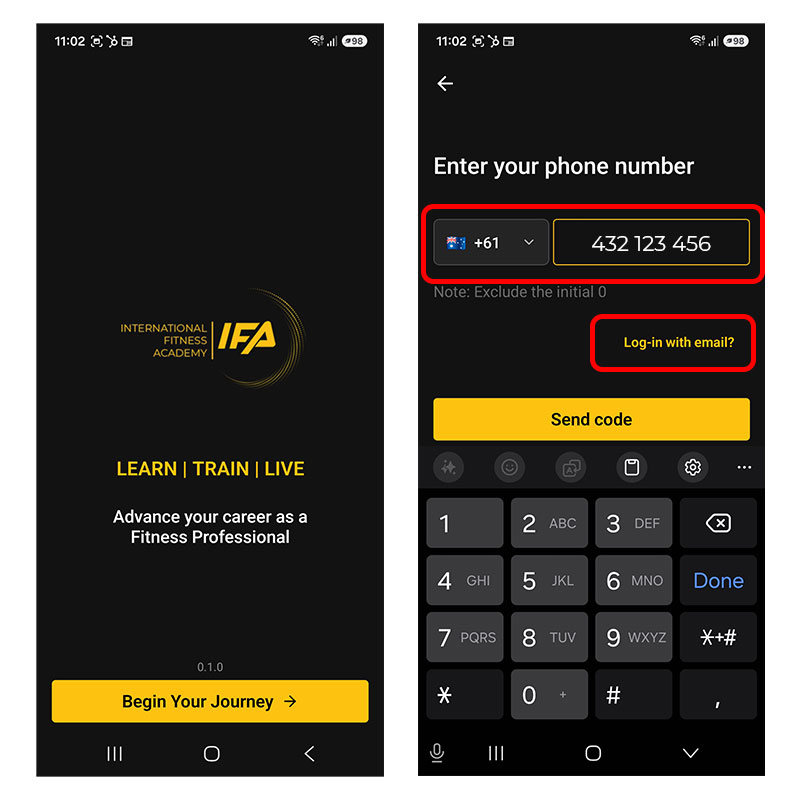
Click on 'Begin Your Journey' to start the login process
Enter your phone number (excluding the starting '0') in the space provided and click 'Send Code'. A code will be sent to your phone
If you'd prefer to log in with your email address instead, click the 'Log-in with email?' link
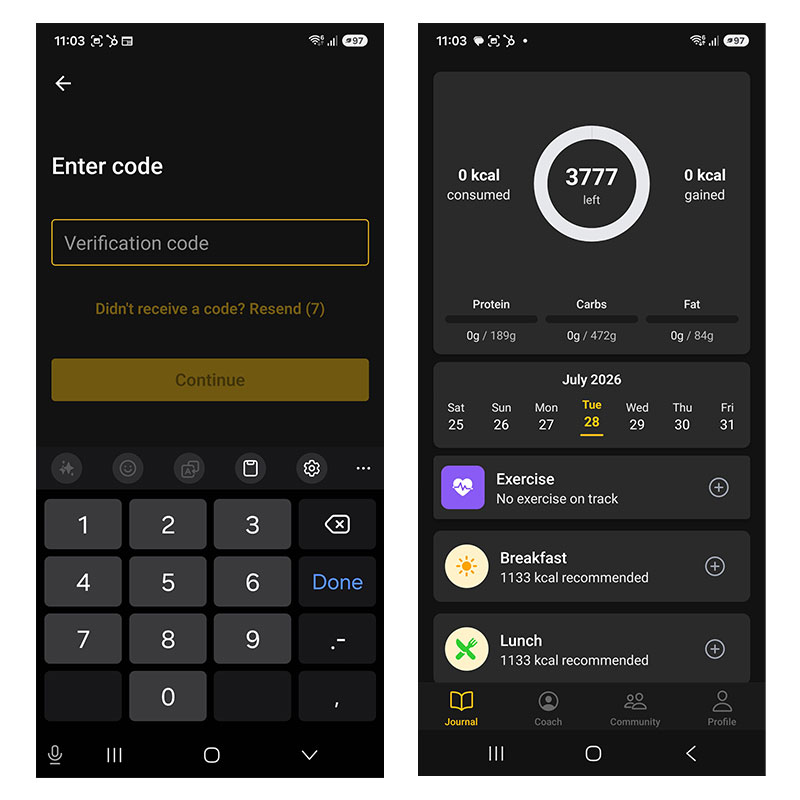
Enter the verification code you received and click 'Continue'
You should now be logged in and ready to complete your initial profile — see the next section for details
Log in with an email address
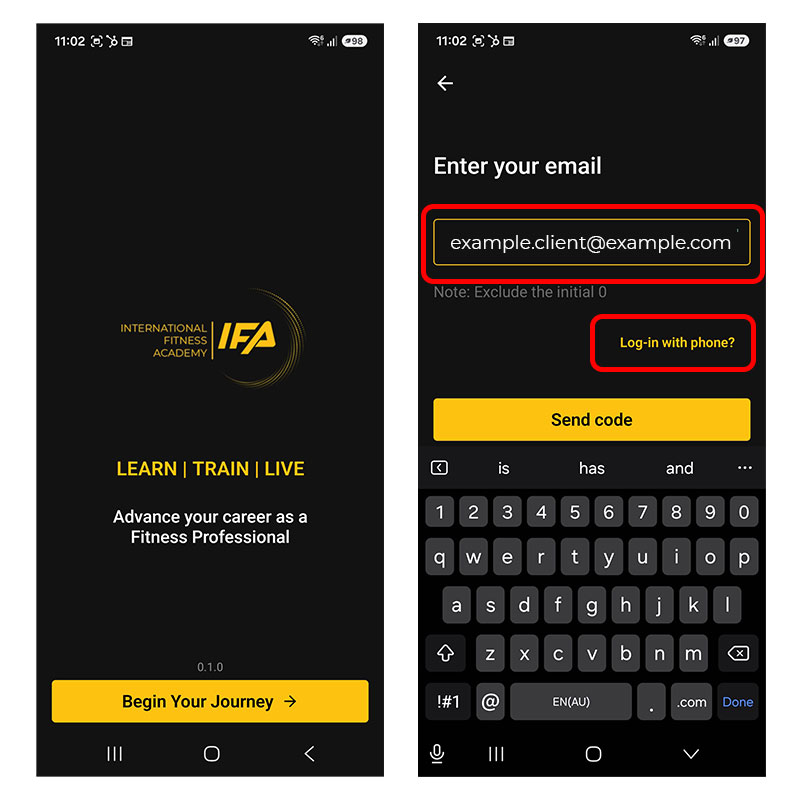
Click on 'Begin Your Journey' to start the login process
Click the 'Log-in with email?' link to switch from a phone-based login to an email-based login
Enter your email address in the space provided and click 'Send Code'. A code will be emailed to you
If you'd prefer to log in with your phone number instead, click the 'Log-in with phone?' link
Enter the verification code you received via email and click 'Continue'
You should now be logged in and ready to complete your initial profile — see the next section for details
Create your VIVN profile
The first time you log in to the VIVN app, you'll be prompted to
complete your profile. This is a one-time action, and you can
update your details at any time within the app afterwards.
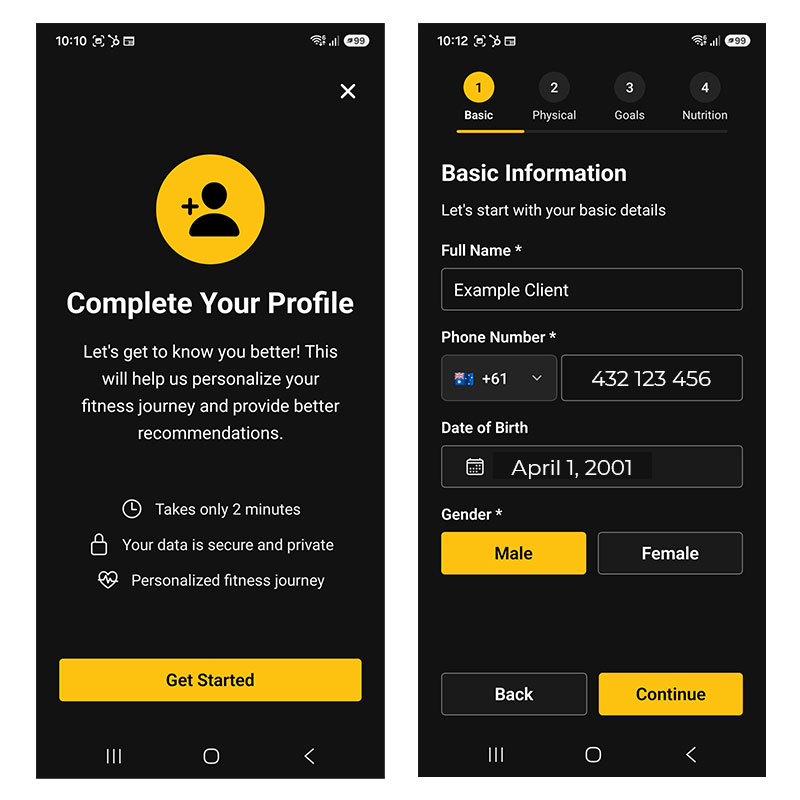
Click on 'Get Started' to begin the profile creation process
On the Basic Information screen, enter (or confirm) your name, phone number, date of birth and gender
Once those details are entered, click 'Continue'
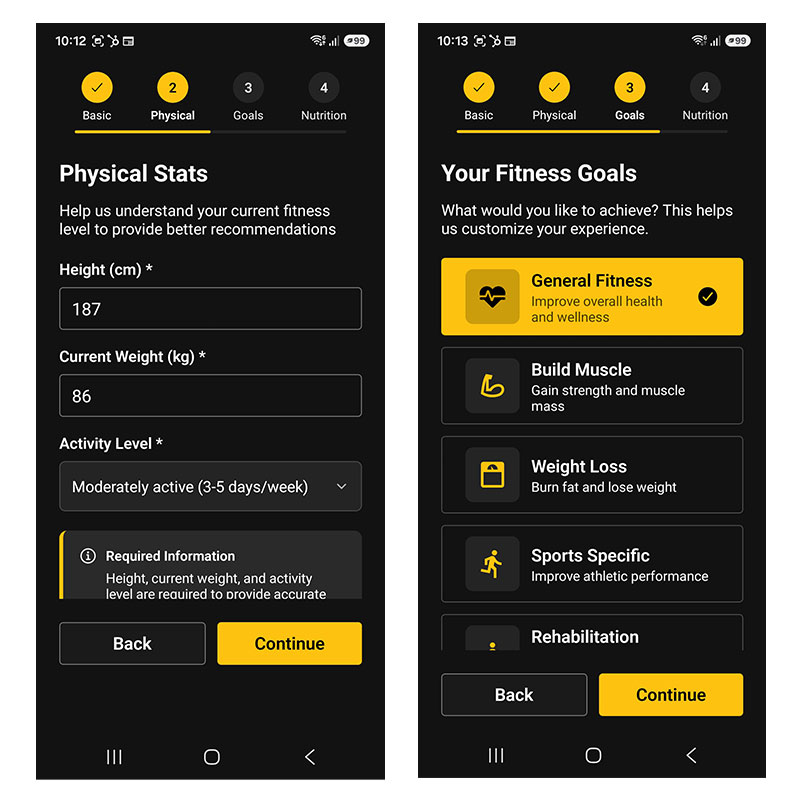
On the Physical Stats screen, enter your height and weight, then tap the Activity Level box to select your activity level from the options provided
Once complete, click 'Continue'
On the Your Fitness Goals screen, choose a goal from the options available — General Fitness, Build Muscle, Weight Loss, Sports Specific, or Rehabilitation
Once complete, click 'Continue'
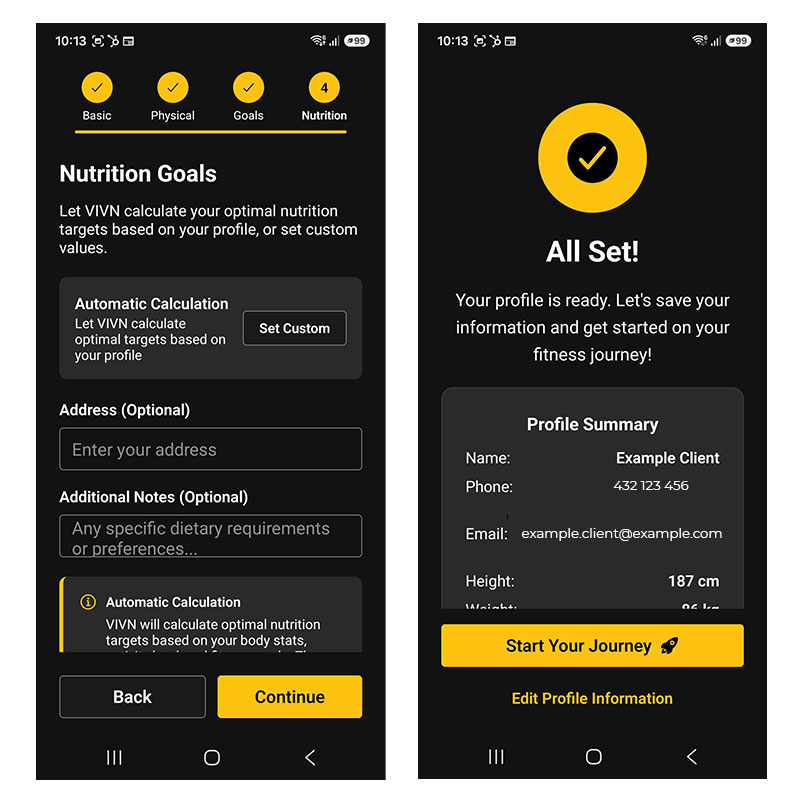
On the Nutrition Goals screen, leave the settings as the defaults shown to let VIVN automatically calculate targets based on your fitness goals — or click 'Set Custom' to enter your own settings
Click 'Continue'
Your profile is now complete, and a summary of your settings is shown
Click 'Start your Journey' to finish setting up your profile
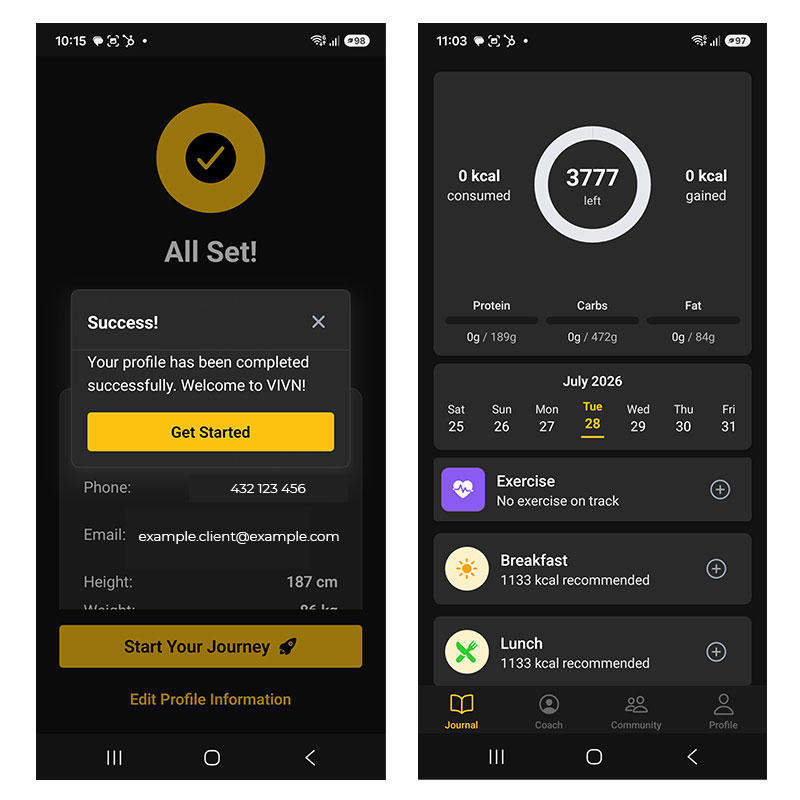
You should see a 'Success' message confirming your profile was created
Click 'Get Started' to exit to the main app
FAQ & support
Quick answers to the questions we're asked most often.
I haven't received my welcome email or text — what do I do?
+
Double-check the email address and mobile number on your
enrolment record are correct. If they're right and you still
haven't heard from us, get in touch with your student support
team and we'll look into it.
I didn't receive my verification code — what should I try?
+
On the code entry screen, use the 'Resend'
option after the countdown finishes. If it still doesn't
arrive, try switching login methods (phone instead of email,
or vice versa) using the link on the login screen.
Can I change my profile details after I've set them up?
+
Yes — your profile can be updated at any time from within the
app. The initial setup only happens once, the first time you
log in.
Something went wrong during login or profile setup — who do I contact?
+